


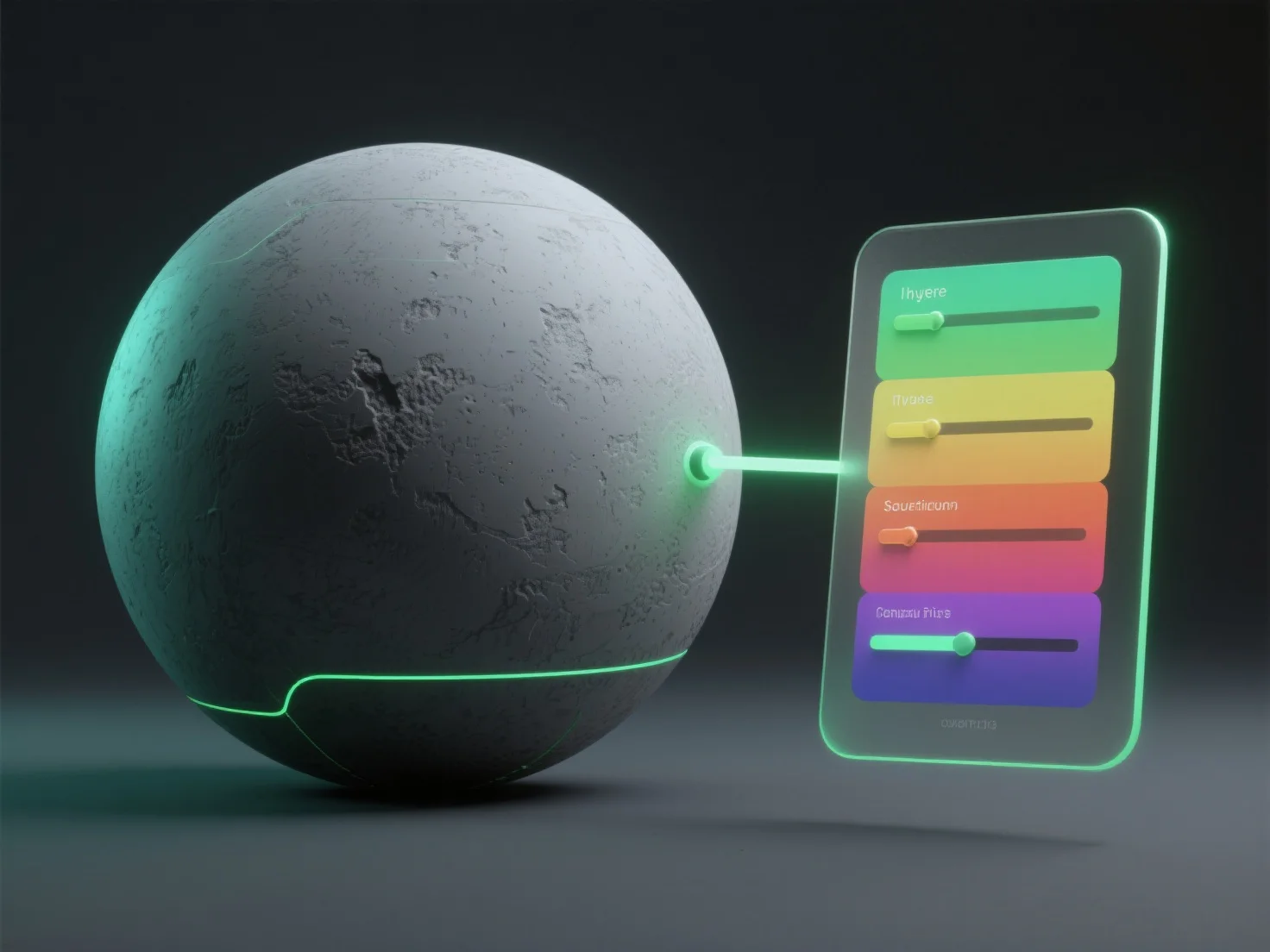
L'application de la correction des couleurs aux textures dans le rendu 3D implique l'utilisation d'outils de post-traitement ou de logiciels d'édition de textures pour ajuster des paramètres tels que la teinte, la saturation et la luminosité, améliorant ainsi le réalisme en alignant les couleurs avec l'éclairage de la scène ou l'intention artistique.
Les étapes clés incluent : - **Sélection de l'outil** : Utilisez un logiciel tel que Photoshop pour l'édition de textures, les nœuds de shader de Blender, les moteurs de post-traitement (par exemple, Unity's Post-Processing Stack) ou des outils de gradation de couleur dédiés. - **Ajustements de base** : Modifiez la teinte (ton de couleur), la saturation (intensité), la luminosité/le contraste (équilibre de la lumière) et corrigez les dominantes de couleur pour correspondre à l'ambiance de l'environnement 3D. - **Focus sur l'intégration** : Assurez-vous que les textures se mélangent naturellement avec l'éclairage, améliorant ainsi la cohérence visuelle dans le développement de jeux, les effets spéciaux de films ou les rendus architecturaux.
Pour les débutants, commencez par des ajustements de base dans des outils conviviaux pour vous familiariser avec les flux de travail avant le réglage avancé des couleurs.