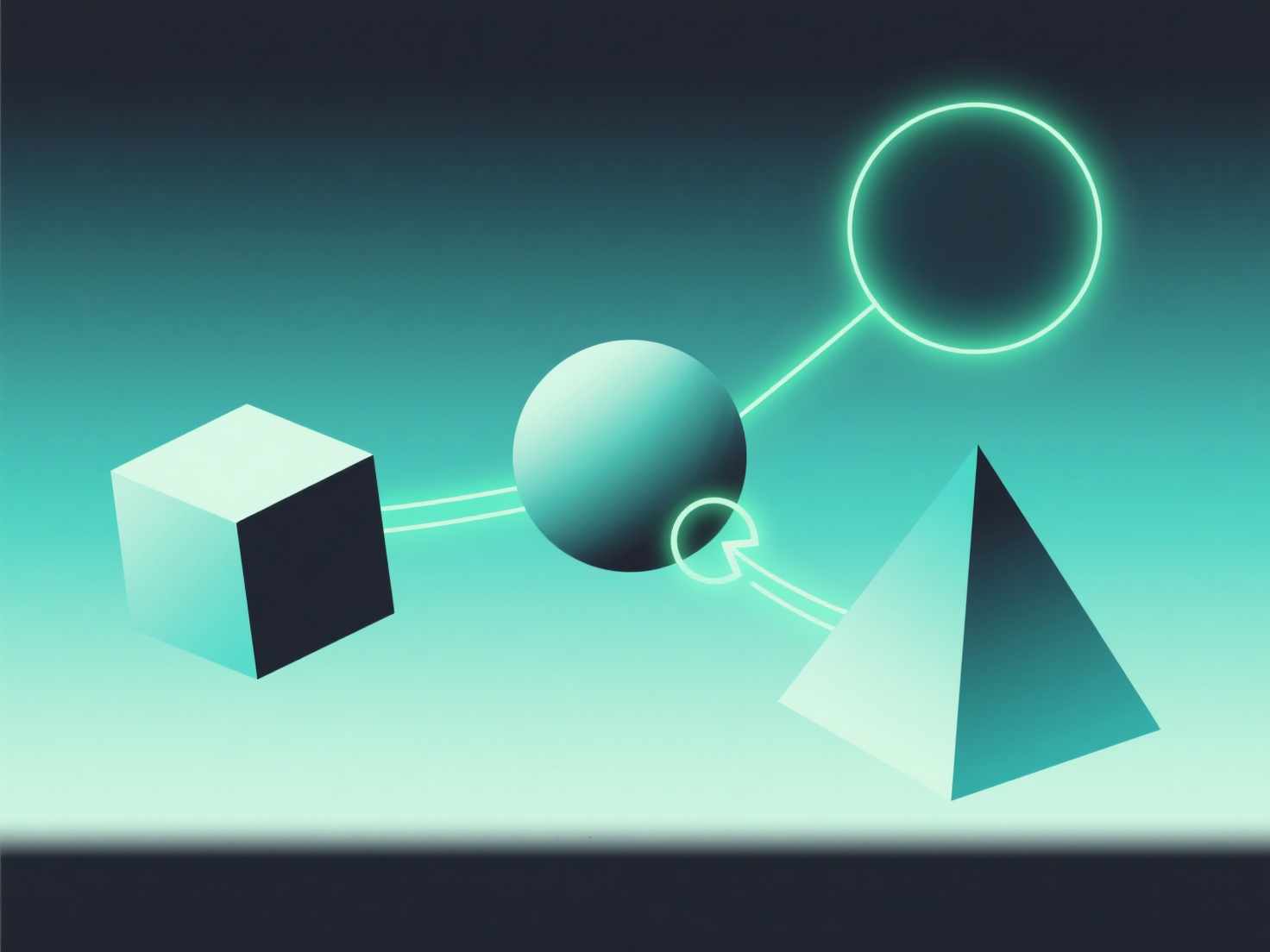
When rotating a 3D model, broken normals typically occur because the normal vectors aren’t updating with the model’s rotation or were incorrectly calculated initially.
Normals are surface direction vectors that control lighting—if they don’t rotate with the model, surfaces may look glitchy, dark, or inverted. Common causes include non-uniform scaling (e.g., stretching a model unevenly) or export/import issues that lose normal data.
To fix this, try recalculating normals in your 3D software (most tools have a "recalculate normals" feature) or ensuring scaling is applied properly before rotating.