


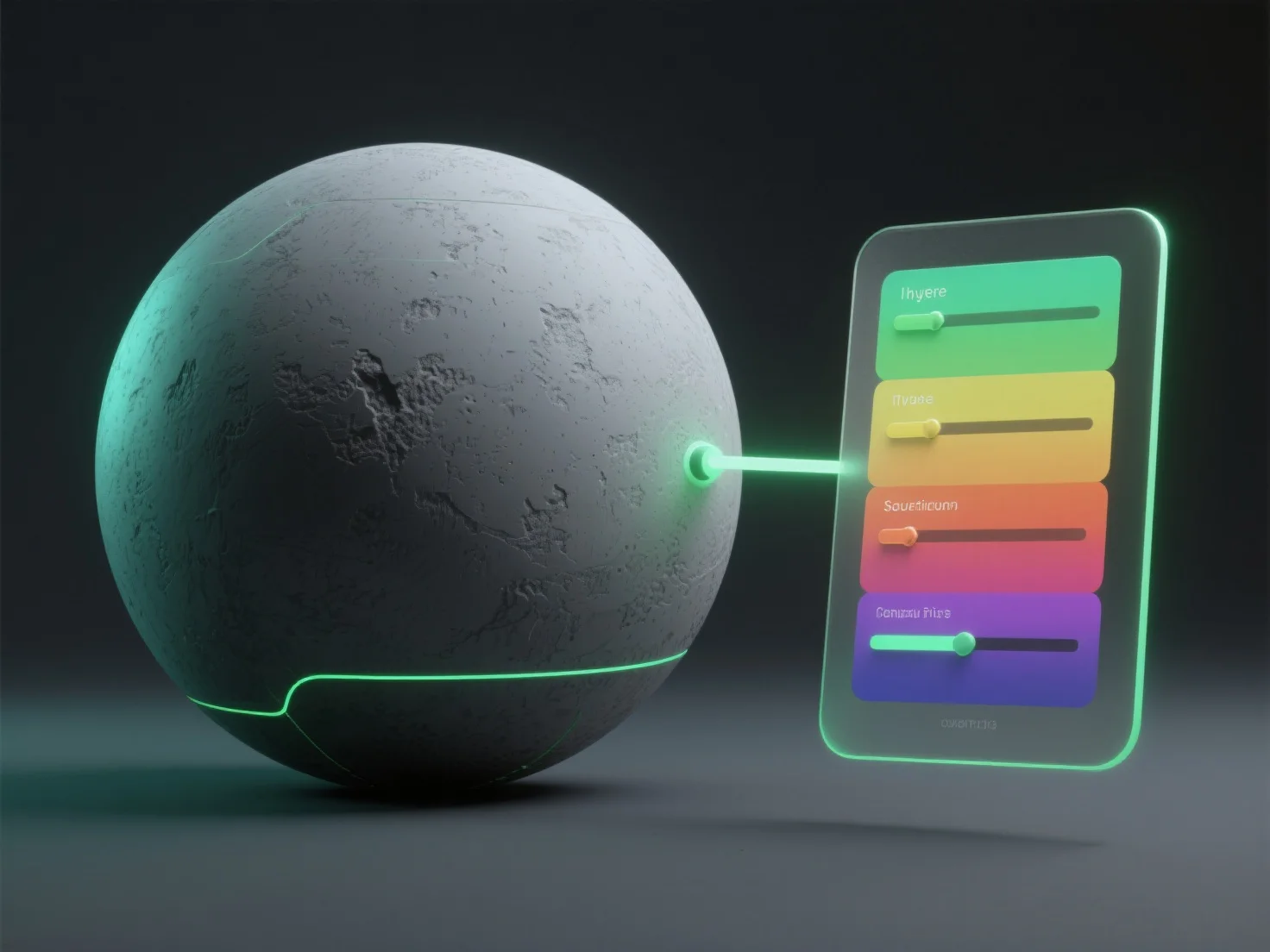
Aplicar correção de cores a texturas em renderização 3D envolve a utilização de ferramentas de pós-processamento ou software de edição de texturas para ajustar parâmetros como matiz, saturação e brilho, melhorando o realismo ao alinhar as cores com a iluminação da cena ou a intenção artística.
Os principais passos incluem: - **Seleção de ferramentas**: Utilize software como o Photoshop para edição de texturas, os nós de shader do Blender, motores de pós-processamento (por exemplo, a Pilha de Pós-Processamento da Unity) ou ferramentas dedicadas à gradação de cores. - **Ajustes fundamentais**: Modifique a tonalidade (cor), a saturação (intensidade), o brilho/contraste (equilíbrio de luz) e corrija os tons de cor para combinar com o ambiente 3D. - **Foco na integração**: Assegure que as texturas se misturam naturalmente com a iluminação, melhorando a coerência visual no desenvolvimento de jogos, efeitos visuais de filmes ou renderizações arquitetónicas.
Para iniciantes, comece com ajustes básicos em ferramentas fáceis de usar para se familiarizar com os fluxos de trabalho antes da gradação avançada de cores.