


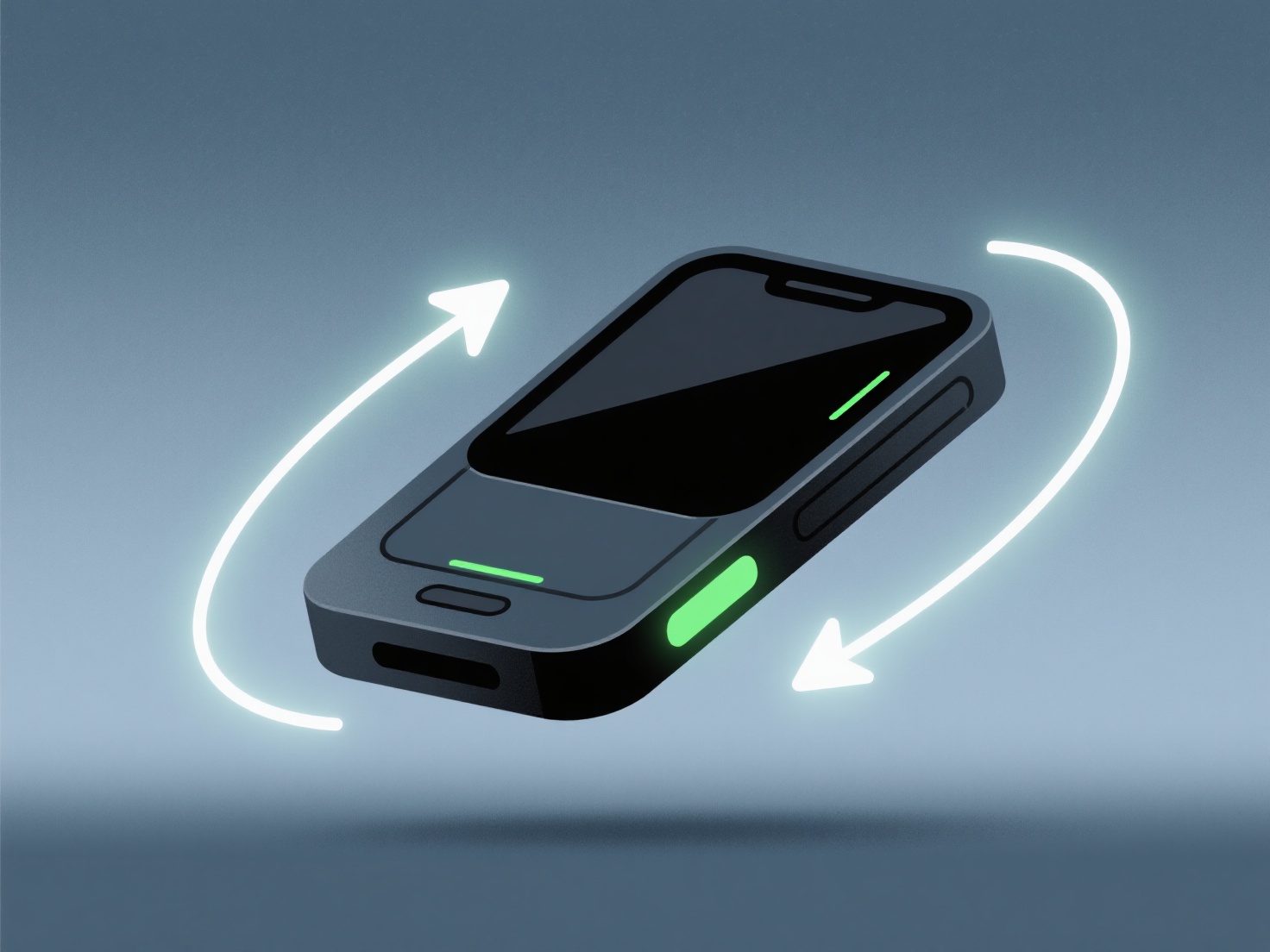
Untuk memperbaiki bayangan aneh dalam model 3D isometrik, mulailah dengan normal, periksa UV, sejajarkan pencahayaan, dan uji dengan bahan datar. Langkah-langkah ini mengatasi sebagian besar masalah seperti bayangan aneh atau bercak datar.
Menghitung ulang normal permukaan menggunakan alat perangkat lunak 3D kamu.
Selanjutnya, periksa peta UV untuk distorsi. UV yang buruk dapat mengganggu shading berbasis tekstur (seperti ambient occlusion), jadi pastikan mereka bersih dan terbungkus dengan benar.
Kemudian, sejajarkan sumber cahaya Anda dengan konvensi isometrik (biasanya sudut atas-depan 45 derajat) untuk menghindari bayangan yang keras dan tidak alami.
Untuk tes cepat, terapkan bahan warna datar sederhana. Ini mengisolasi apakah masalahnya ada pada normal, UV, atau pencahayaan, sehingga membuat perbaikan lebih cepat.