


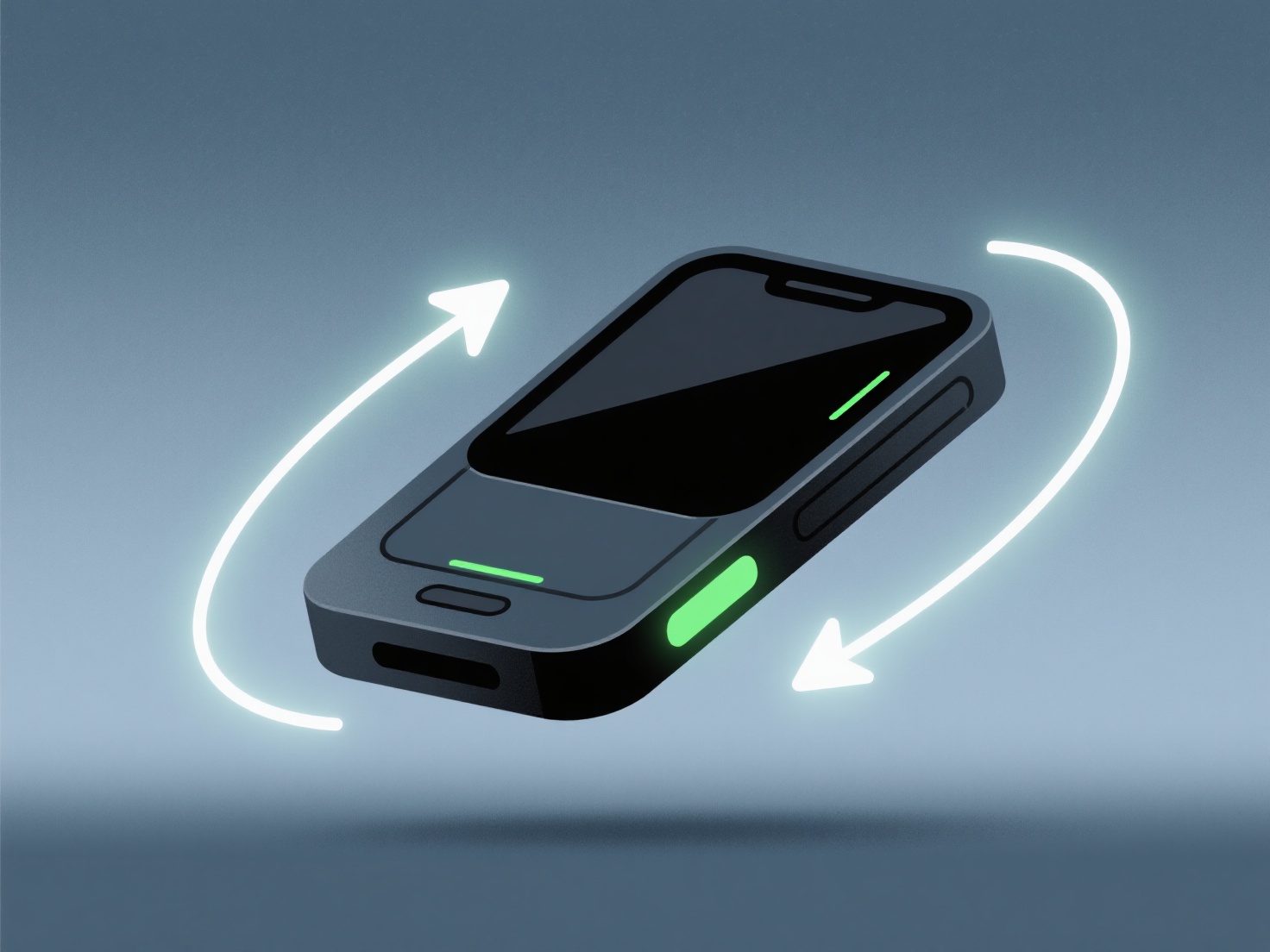
Pour corriger les ombres étranges dans les modèles 3D isométriques, commencez par les normales, vérifiez les UV, alignez l'éclairage et testez avec un matériau plat. Ces étapes résolvent la plupart des problèmes tels que des ombres irrégulières ou des zones plates.
Récalculez les normales de surface en utilisant l'outil de votre logiciel 3D.
Ensuite, vérifiez les cartes UV pour détecter les distorsions. De mauvais UV peuvent perturber l'ombrage basé sur les textures (comme l'occlusion ambiante), alors assurez-vous qu'ils sont propres et correctement déployés.
Ensuite, alignez votre source de lumière avec les conventions isométriques (généralement un angle de 45 degrés vers le haut et l'avant) pour éviter les ombres dures et non naturelles.
Pour un test rapide, appliquez un matériau de couleur unie simple. Cela permet d'identifier si le problème concerne les normales, les UV ou l'éclairage, ce qui accélère les corrections.