


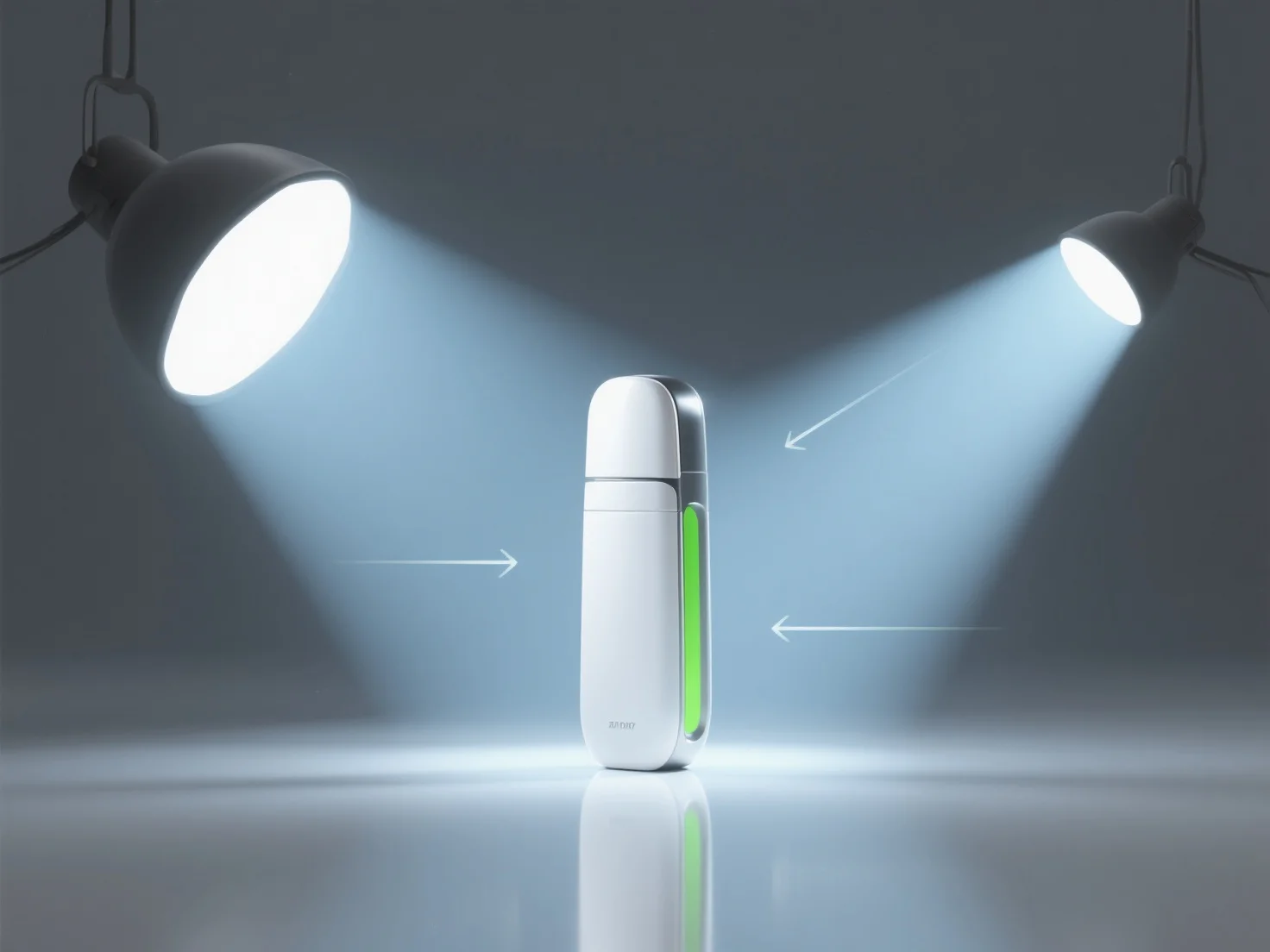
La configuration de l'éclairage pour les rendus de produits 3D commence par l'identification des caractéristiques clés du produit afin de guider le placement de la source de lumière, puis l'utilisation de techniques structurées pour mettre en évidence les détails et la profondeur.
Utilisez la méthode d'éclairage à trois points : la lumière clé (éclairage principal, généralement à 45° au-dessus du produit pour plus de profondeur), la lumière de remplissage (atténue les ombres, avec une intensité inférieure à celle de la lumière clé) et la lumière de bord (met en valeur les contours, positionnée derrière le produit pour le séparer de l'arrière-plan).
Adaptez le type de lumière au matériau du produit : pour les surfaces brillantes.
Les débutants devraient commencer par une configuration de base à trois points, ajuster progressivement les angles et l'intensité de la lumière, et prévisualiser les rendus pour équilibrer les reflets et la définition des ombres, en veillant à ce que les caractéristiques clés du produit restent le point focal.