


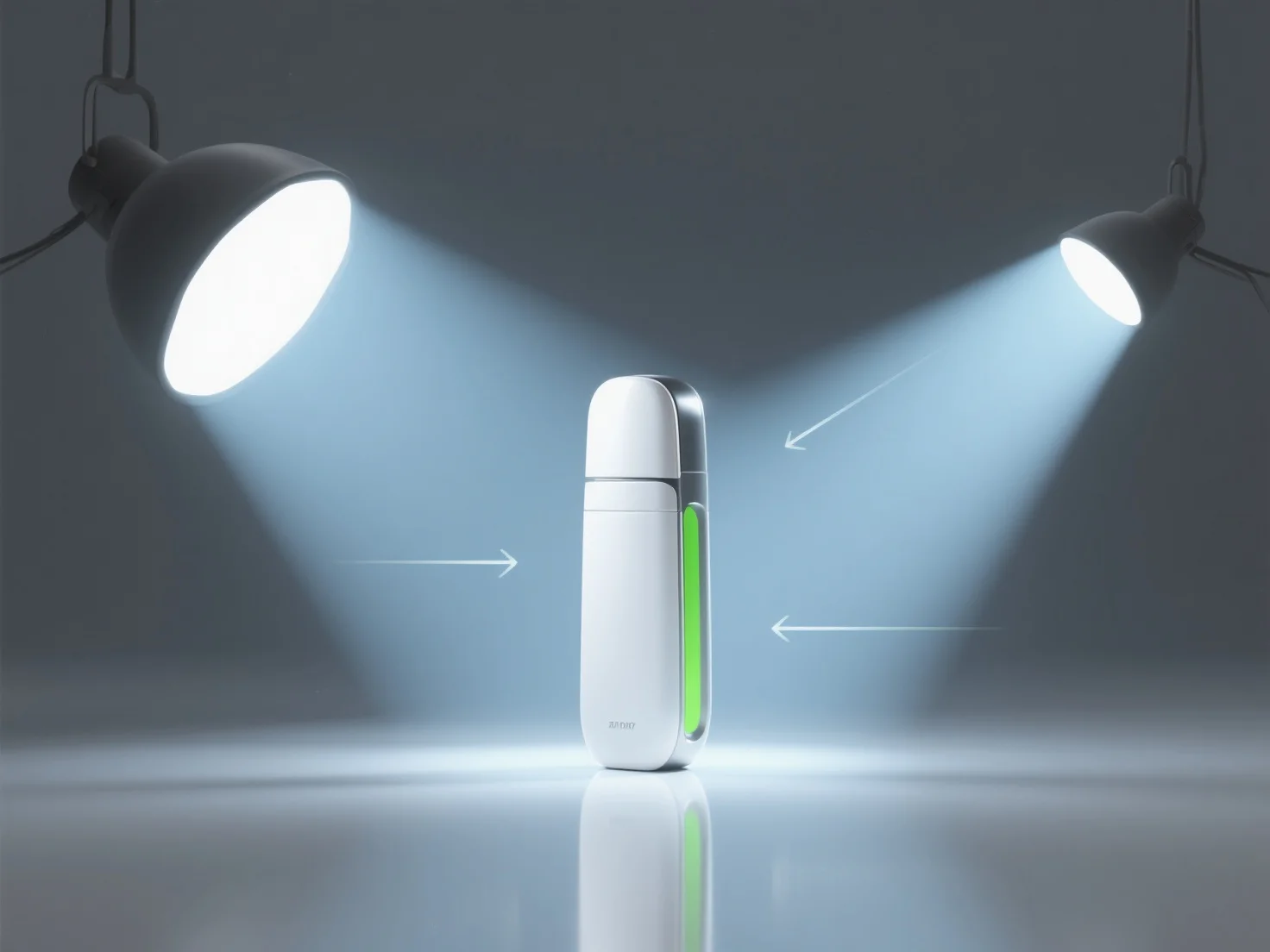
La configuración de la iluminación para los renders de productos 3D comienza con la identificación de las características clave del producto para guiar la colocación de la fuente de luz, y luego el uso de técnicas estructuradas para resaltar los detalles y la profundidad.
Use el método de iluminación de tres puntos: luz clave (iluminación principal, generalmente a 45° sobre el producto para crear profundidad), luz de relleno (suaviza las sombras, con una intensidad inferior a la de la luz clave) y luz de contorno (accentúa los bordes, colocada detrás del producto para separarlo del fondo).
Adapte el tipo de luz al material del producto: para superficies brillantes.
Los principiantes deben comenzar con una configuración básica de tres puntos, ajustar los ángulos de luz y la intensidad de manera gradual, y previsualizar los renders para equilibrar los reflejos y la definición de las sombras, asegurando que las características clave del producto sigan siendo el punto focal.