If you own a Bambu Lab printer, you’ve probably experienced at least one of these:
- Scrolling through MakerWorld or Thangs for hours without finding the perfect model
- Seeing a cool concept art, game character, or product design — but no one has made a 3D printable file for it
- Downloading an STL that has holes, thin walls, or non‑manifold geometry — your slicer immediately throws errors
- Wanting to do a multi‑color print but spending an entire afternoon on manual segmentation and AMS setup
Time spent searching for models > time spent printing. That’s one of the most real frustrations for Bambu Lab users.
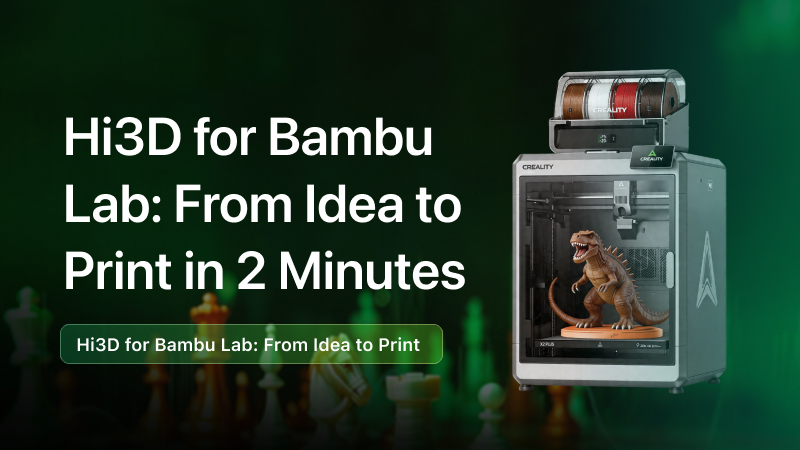
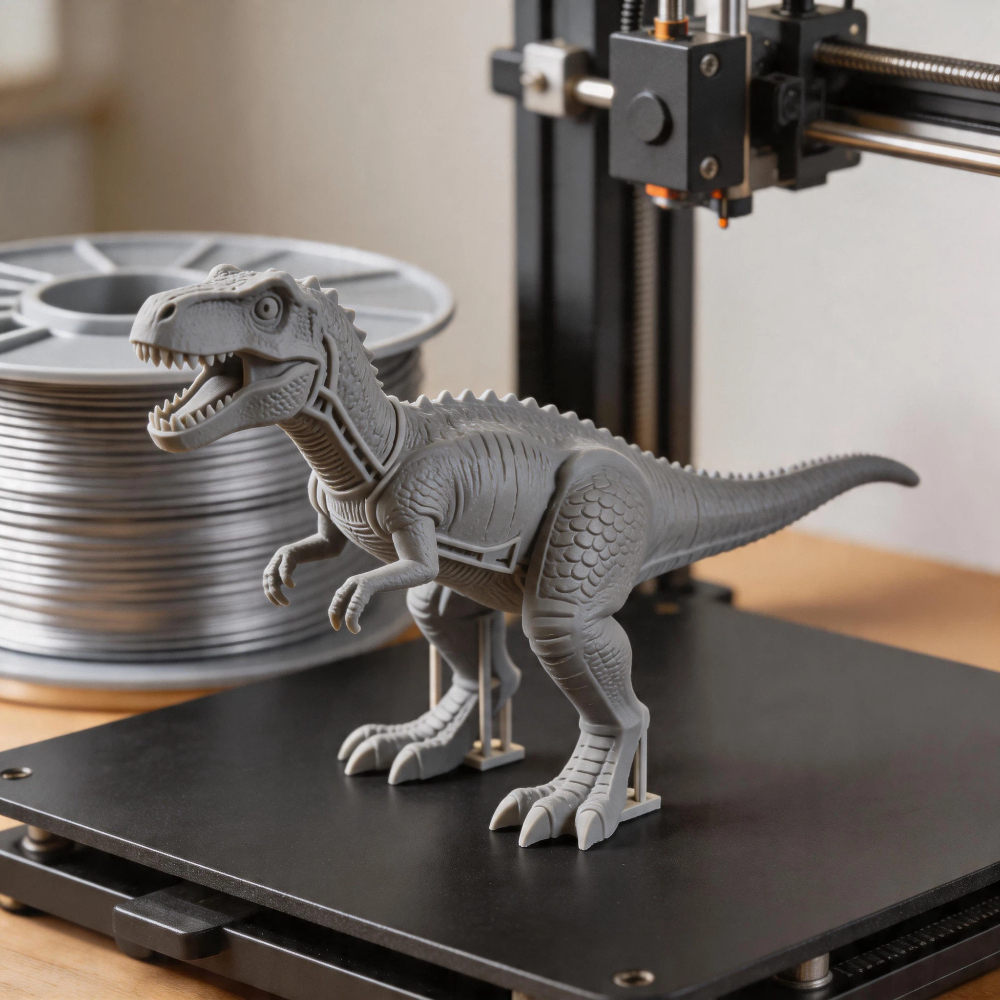
Today, I want to introduce a tool built specifically for this problem: Hi3D (Hitem3D) — an AI image‑to‑3D modeling platform. Give it a 2D image, and within minutes it outputs a print‑ready 3D model that natively supports Bambu Lab’s multi‑color printing, AMS, one‑click slicer integration, and more.
1. The Core Question: How Does Hi3D Help Bambu Lab Users “Create” a Model?
Your starting point can be any 2D image
Hi3D’s core capability is straightforward: input one image → output a printable 3D model.
That image can be:
- An AI concept from GPT Image 2.0 / Midjourney / Stable Diffusion
- A character, prop, or product design you saved from Pinterest or ArtStation
- Even a photo you took (a figurine, a ceramic vase, a chair)
From image to print‑ready model — 2 to 5 minutes total
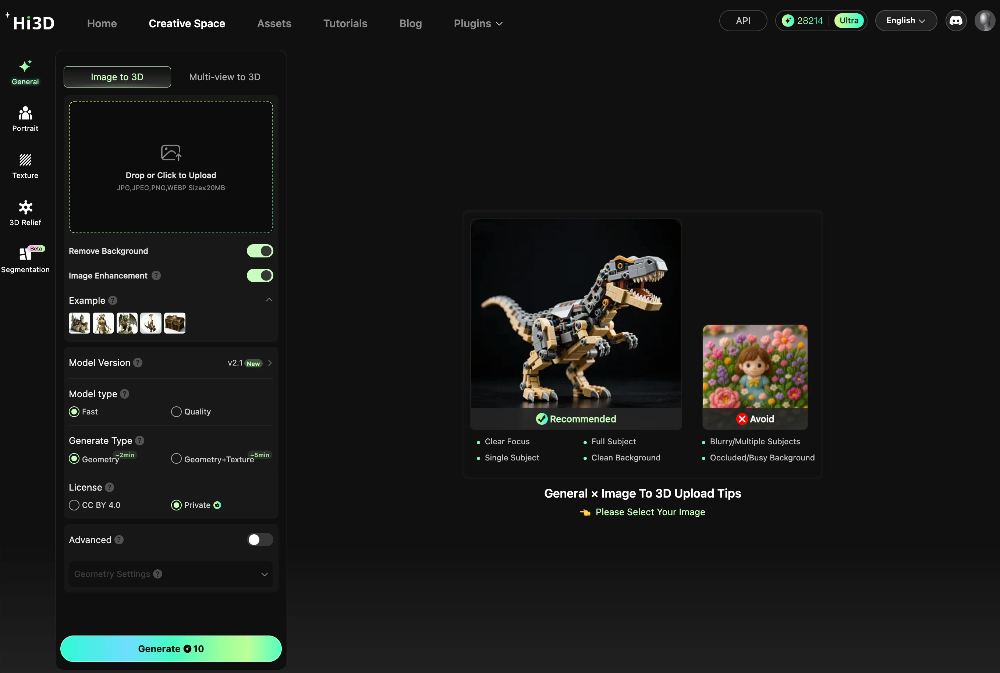
- Upload the image to the Hi3D web app
- Enable “Printability Check” + “Auto‑Repair” (automatically optimizes for watertight, non‑manifold‑free, flat‑base output)
- Wait 2–5 minutes → download as STL / OBJ / GLB / FBX / USDZ
- One‑click send to Bambu Studio → slice → print
Real test: A medium‑complexity game character — from AI‑generated concept art to ready‑to‑slice in Bambu Studio — takes less than 5 minutes.
The value of this workflow: you are no longer limited to public model libraries. Anything you can draw or generate with AI, you can now turn into your own 3D printable file.
2. Why Hi3D Is a Perfect Fit for Bambu Lab Users — Not Just “3D Conversion”, But “Built for Printing”
Several image‑to‑3D tools exist, but Hi3D has been optimized for FDM and multi‑color printing from day one, with deep attention to the Bambu Lab ecosystem.
These 5 features are what Bambu Lab users will find genuinely useful.
2.1 Print‑Ready Output
Hi3D doesn’t produce “nice‑looking meshes” — it produces models that actually print:
- Automatically generates a flat, stable base (no need to trim or add a raft)
- Watertight mesh — no holes, no overlapping triangles
- Reasonable wall thickness — no extremely thin areas
- No need for Meshmixer or Blender to repair geometry
👉 For Bambu Lab users: Download → directly into Bambu Studio. No more “non‑manifold” or “floating surfaces” errors.
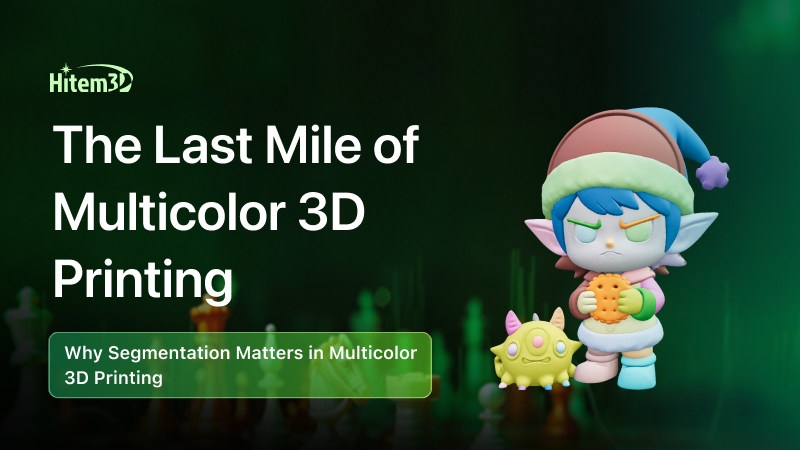
2.2 Multi‑Color Auto‑Segmentation — A Must for Bambu AMS Owners
This is one of the strongest integrations between Hi3D and the Bambu ecosystem.
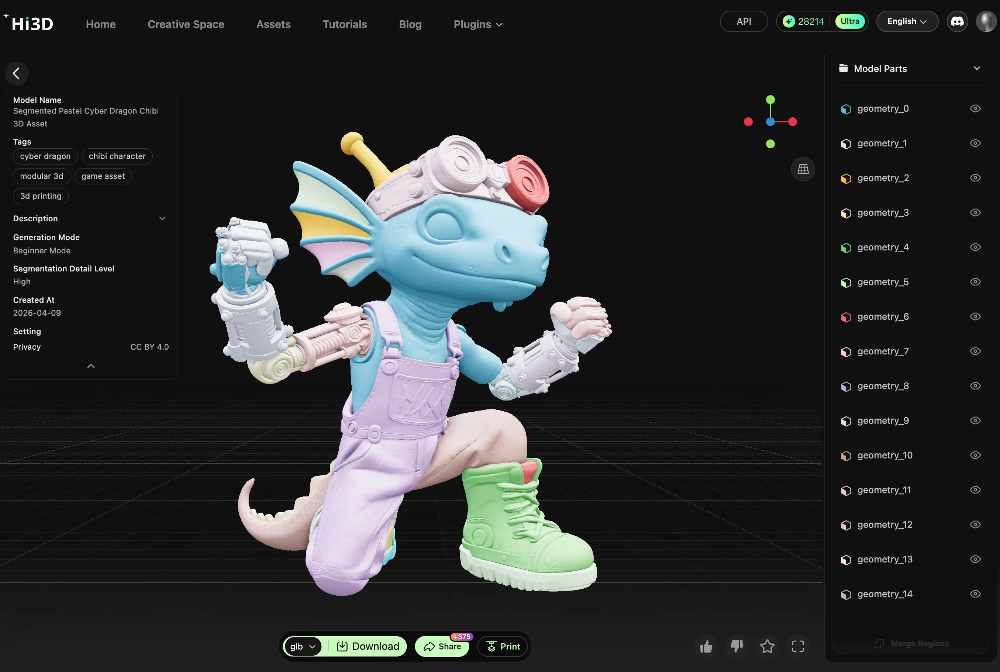
When you upload a 2D image with multiple color regions (e.g., a red‑and‑black mecha, a yellow‑and‑blue cartoon character), Hi3D automatically:
- Identifies different color areas
- Segments the model into separate mesh parts (each corresponding to one color)
- Assigns a filament channel to each part
After export, you can directly see the color‑separated parts in Bambu Studio — no manual splitting, no painting color regions.
Example: You generate a character with a “red cape + silver armor + gold trim”. Hi3D outputs 3 parts with color labels. Load them into Bambu Studio + AMS — you’re ready for multi‑color printing immediately.
2.3 Printability Check & Auto‑Repair
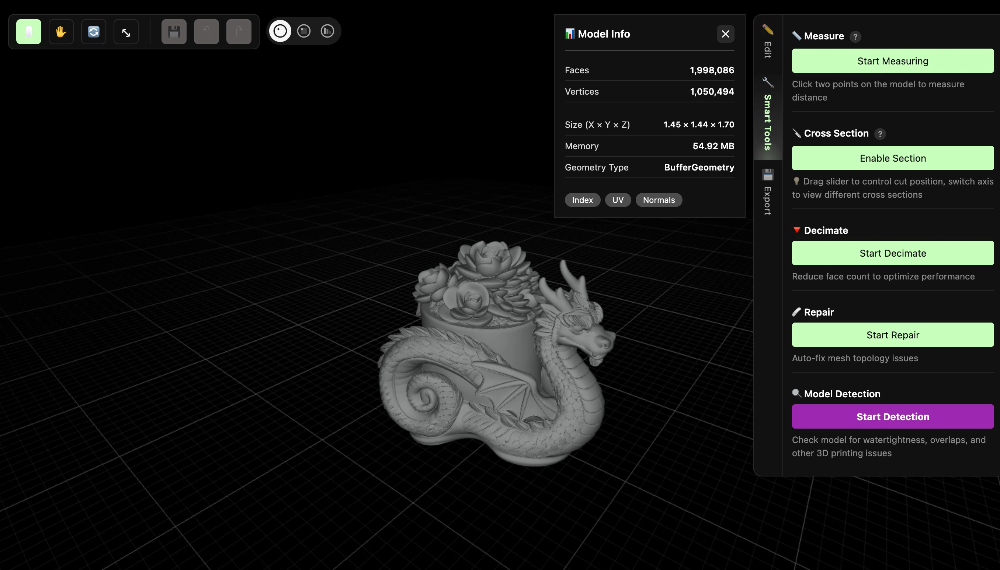
Many AI‑generated 3D models look cool but fail on the printer. Hi3D includes an FDM‑aware automatic repair pipeline:
- Detects and fixes thin walls
- Automatically repairs non‑manifold geometry
- Identifies and thickens floating or unsupported surfaces
- Gives clear warnings for areas that cannot be auto‑repaired
👉 You no longer need to export to Netfabb or Windows 3D Builder for repairs. Hi3D exports already fixed.
2.4 Online Model Editor
Often you only need small adjustments: scale by 10%, rotate, or cut off a part.
Hi3D provides a lightweight but sufficient online editor:
- Scale / Rotate / Mirror
- Simple split / slice
- Reposition
No need to open Blender or learn Meshmixer. A few clicks in your browser.
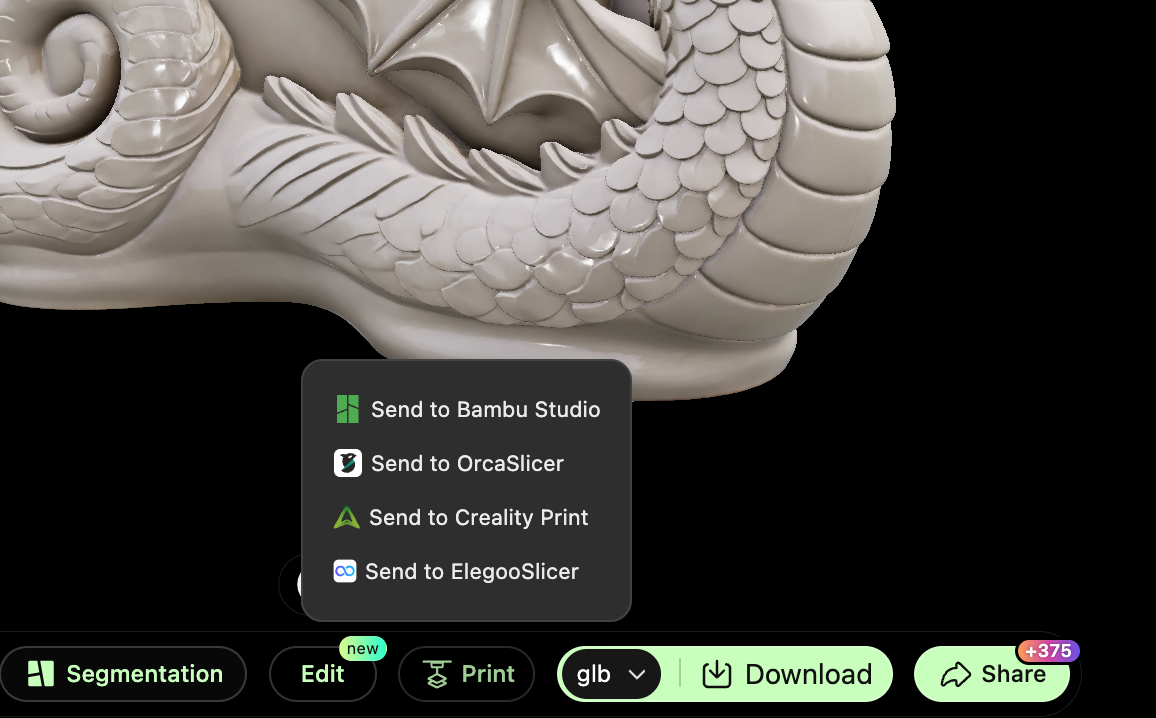
2.5 One‑Click Send to Your Slicer or Printer
This is a key design choice for a seamless workflow.
After generating and editing your model, you can:
- Export directly as STL / OBJ / GLB / FBX / USDZ
- One‑click send to Bambu Studio (via file association or API)
- Or simply download and drag into your slicer
Hi3D’s principle: don’t interrupt your print preparation flow. No extra downloads, renaming, or folder switching.
3. A Real Bambu Lab User Workflow Example
Let’s say you want to print a multi‑color “Sphinx” figurine.
| Step | Action |
|---|---|
| 1 | Generate “Sphinx figurine, blue + orange + gray, pure white background” with GPT Image 2.0 |
| 2 | Upload image to Hi3D, click “Generate” |
| 3 | Hi3D generates model + automatic multi-color segmentation |
| 4 | One-click send to Bambu Studio → confirm AMS colors → slice |
| 5 | Start printing |
From an idea to starting the print : less than 10 minutes. In a traditional workflow, modeling alone would take half a day or more.
4. Hi3D’s Positioning: Not Replacing Modelers, but Letting Bambu Lab Users “Print Whatever You Imagine”
Hi3D does not try to replace professional 3D modelers. Its target users are clear:
- Bambu Lab (and other FDM) users who want to quickly turn ideas into physical objects
- Product designers, makers, and figurine enthusiasts who don’t want to spend hours on modeling
- Users who want to try multi‑color printing but are put off by manual segmentation
For these users, Hi3D’s value is not “more professional models” — it’s “a lower barrier to entry + higher print success rate” .
5. Try It Now: Turn Your Next “Inspiration Image” into a Print
Hi3D offers a free trial. You can upload an image and go through the full workflow right now.
Great starting points for Bambu Lab users:
- Generate a cartoon mecha with AI → Hi3D auto‑segments colors → AMS multi‑color print
- Take a photo of a ceramic cup at home → Hi3D generates a 3D model → print a replacement handle
- Find a fan art of a game character → convert into a printable figurine → display on your desk
👉 Try it now: Visit the Hi3D website (or click the card on the right), upload your first image, and experience the efficiency of “2 minutes from 2D to print” .
If you’re already using Bambu Lab + Hi3D, share your prints in our Discord community — we’d love to see AI + 3D printing actually landing on your workbench.